Getting Started
How to download cTrader
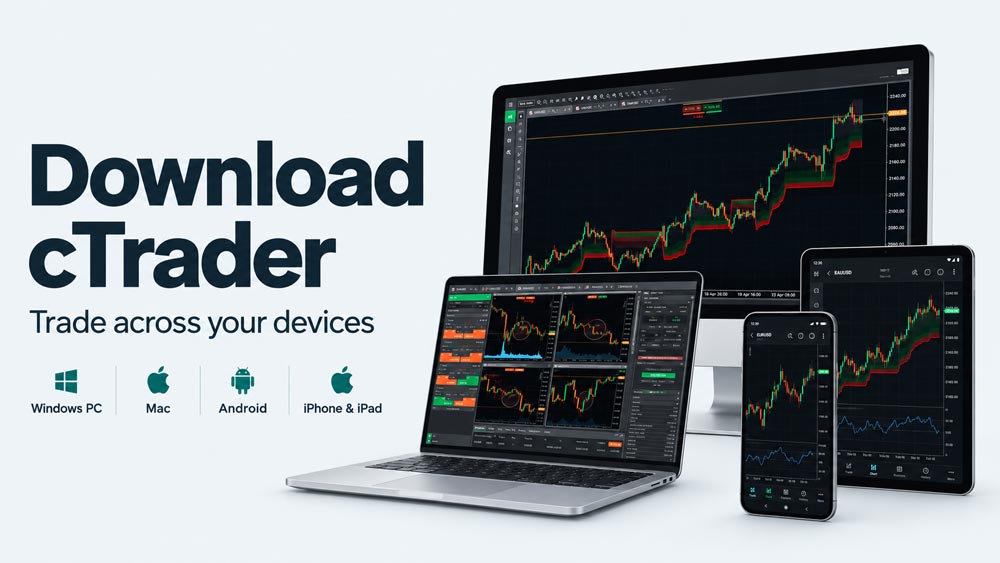
Choose a compatible broker, get the right cTrader app for your device and practise on demo. Our broker site brings the download and account options together.
Start with our cTrader broker download guide
Visit our cTrader Brokers site to explore compatible brokers and the available Windows, Mac, web and mobile options. Follow your chosen broker’s instructions to access the app and connect the right trading account.
Visit the cTrader download guide
You can begin with a demo account and virtual funds. Downloading an app does not require you to fund a live trading account.
Choose the app for your device
Windows or Mac
Use your chosen broker’s cTrader download instructions to get the appropriate desktop installer. Windows and Mac are the practical choices if you want to develop cBots, use custom indicators or run backtests. Check the current system requirements before installing, then open the app and sign in.
Web browser
cTrader Web runs in a supported browser, so there is no desktop installer. Follow the web access link provided by your broker and sign in. It is useful for charting and managing trades from another computer, but it does not replace the desktop development environment.
iPhone, iPad or Android
Follow your broker’s mobile link to the Apple App Store or Google Play. Check that it is the intended cTrader app before installing. Mobile is useful for checking an account and managing positions; it is not the desktop editor for building custom indicators or cBots.
Cloud cBots can be managed from desktop, web and mobile. Local cBots run on desktop, and features can differ between apps. Use the official cTrader Help Centre for current requirements and app guidance.
Sign in and select a demo account
Your cTrader ID is your platform sign-in. A broker trading account is separate: it holds the account balance, positions and trading history. Follow the broker’s account-linking instructions and check that the expected account appears after signing in.
Select an account marked Demo. Confirm the broker, account number and account currency before placing a practice order. If you cannot find the account, check that you are using the cTrader ID associated with it and contact the broker for account-access help.
Our Getting started with cTrader guide takes you through the workspace and a first demo trade. Read What is cTrader? if you are still comparing it with MT4, NinjaTrader or TradingView.
Before opening a live account
Check the broker’s legal entity, regulatory status, country eligibility, available instruments and full trading costs. A platform download is not evidence that a broker or account is suitable for you. Demo results do not reproduce every aspect of live trading.
Forex and CFD trading involves substantial risk, and leverage can magnify losses. Take time to understand margin, order size and the product you intend to trade before depositing money.
If the download or sign-in does not work
If an installer will not run, confirm that it matches your operating system and meets the current requirements. Obtain it again through the broker’s official instructions rather than an unsolicited message or file-sharing link.
If sign-in works but the trading account is missing, ask the broker to check the account association. Installing a second copy of the platform will not link an account to a different cTrader ID. For app-specific guidance, use the Web or Mac documentation and the relevant Windows or Mobile section of the Help Centre.